Updated 2026-08
How to Import Sprite Sheets into Godot 4 (the AnimatedSprite2D way)
Frame animation in Godot needs zero plugins: the SpriteFrames panel built into AnimatedSprite2D slices sprite sheets and swallows whole PNG sequences alike. This guide targets Godot 4.x.
Quick answer
Add an AnimatedSprite2D node → create a new SpriteFrames resource in the Inspector and open the bottom panel → click the "Add frames from sprite sheet" icon and pick your PNG → set rows/columns and select the cells → name the animation, set FPS → call play("action") in code.
What you need
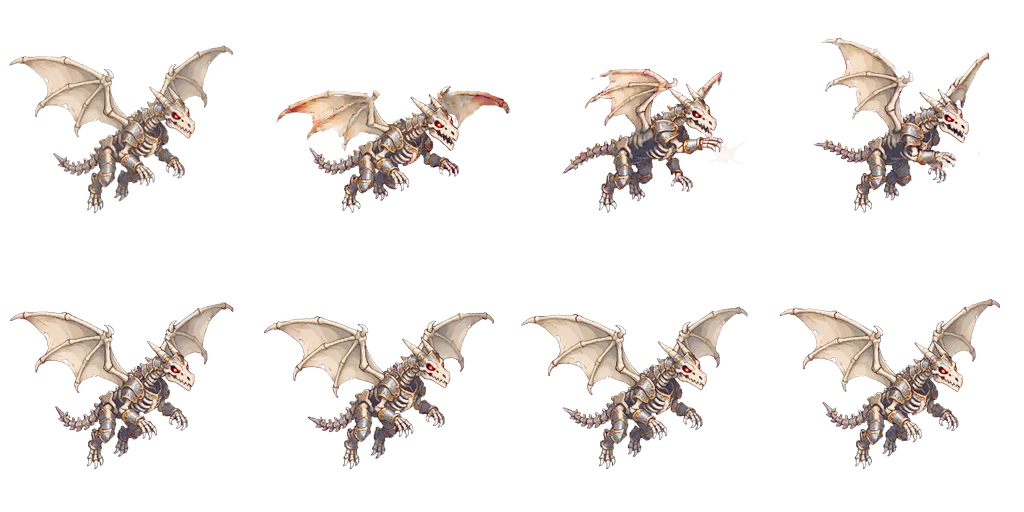
An even-grid sprite sheet (say 4×2 at 256px per cell) or transparent PNG sequence frames. Godot is especially kind to sequences — 'Add frames from files' lets you multi-select an entire folder of frames at once.
Step-by-step
1Drop the PNG into your project
Drag the sheet into any folder in the FileSystem dock (res://sprites/ is the common home). Godot imports it automatically — no wizard needed.
2Add an AnimatedSprite2D node
In your character scene press Ctrl+A and search for AnimatedSprite2D. It's Godot's dedicated frame-animation node — far more direct than the old Sprite2D + AnimationPlayer trick of keyframing the frame property.
3Create the SpriteFrames resource
With the node selected, find the Sprite Frames property in the Inspector, choose New SpriteFrames from the dropdown, then click it once more — the SpriteFrames panel opens at the bottom of the editor, where everything else happens.
4Slice frames from the sheet
In the panel toolbar click 'Add frames from sprite sheet' (the grid icon). Pick your PNG, set Horizontal to your column count and Vertical to rows (4×2 for this guide's sheet), click the cells you want (or drag-select), then Add Frames. For PNG sequences use the neighboring 'Add frames from files' and multi-select instead.
5Name the animation and set FPS
Rename the default animation to your action (attack, fly, run), set FPS on the left (10–12 is typical), and toggle Loop for actions that should cycle. Repeat steps 4–5 per action — they all live inside the same SpriteFrames resource.
6Play and switch in GDScript
The AnimatedSprite2D API is one layer deep: play() starts an action, and the animation_finished signal catches the end of non-looping ones. A typical controller:
# dragon.gd
extends CharacterBody2D

@onready var anim: AnimatedSprite2D = $AnimatedSprite2D

func _ready() -> void:
    anim.play("fly")
    anim.animation_finished.connect(_on_anim_finished)

func attack() -> void:
    anim.play("attack")

func _on_anim_finished() -> void:
    # Return to the flight loop after one-shot actions like attack
    if anim.animation == "attack":
        anim.play("fly")
Two settings pixel art needs
- Switch texture filtering to Nearest: Godot 4 defaults to Linear, which blurs pixels. Set it globally in Project Settings → Rendering → Textures → Default Texture Filter, or per-node under CanvasItem → Texture → Filter in the Inspector.
- Use integer scaling: under Project Settings → Display → Window → Stretch set Mode to viewport and keep scale at whole numbers, avoiding the pixel shimmer that fractional scaling causes.
FAQ
- AnimatedSprite2D or AnimationPlayer — which should I use?
- For pure frame animation (this guide's case) use AnimatedSprite2D — it's simpler and direct. Reach for AnimationPlayer only when one animation must drive multiple properties at once (hitboxes, audio, particles): it's a multi-track system where frame flipping is just one capability.
- Why does my animation flicker while playing?
- Usually mipmaps got enabled on import, or filtering isn't Nearest while the sprite is scaled. Select the PNG, disable Mipmaps in the Import dock (2D doesn't need them), Reimport, and set filtering to Nearest as above.
- My frames imported in the wrong order — what happened?
- 'Add frames from files' sorts by filename lexicographically: frame_2.png lands after frame_10.png. Zero-pad your numbers (frame_02, frame_10). PNG sequences exported from FrameSprite are three-digit padded already, so they order correctly out of the box.
- Can one SpriteFrames be reused across scenes?
- Yes. Right-click the Sprite Frames property → Save it as a .tres file, then Load that same resource on any other AnimatedSprite2D. Every instance of the character shares one animation set — edit once, updated everywhere.
Need sprite sheets to import?
Upload one character image to FrameSprite and get 14 action animations back — auto chroma-keyed in the browser, exported as transparent PNG sequences and packed sprite sheets. The dragon in this guide was made exactly this way. 30 free credits on sign-up.
Generate sprite sheets free